HiSense Smart TV Remote
- 4.6
- Rating
- 500.00K
- Installs
- Free
- Price
 Analysis by App-foxy
I tested HiSense Smart TV Remote as a practical House & Home utility rather than treating it like a full replacement for every television accessory. Its purpose is straightforward: turn a compatible phone into a remote for a HiSense smart TV. That narrow goal is also the key to judging it fairly. When the phone and television cooperate, it can save you from searching behind cushions or walking across the room. When they do not, the app cannot magically solve every connection problem or replace the complete experience of a physical controller.
The app is made by Naba, is free to use, and is suitable for Everyone. It has attracted more than half a million installs and holds an average rating of 4.6 from roughly sixteen thousand ratings, which suggests that many people find the basic idea useful. I would still treat those numbers as a starting point, not a guarantee. Remote-control apps depend heavily on the particular TV, network setup, phone, and permissions available on the device.
What using this remote feels like in the home
The first thing I noticed is how different this kind of app feels from a streaming app. There is no library to browse and no content to discover. The value appears at the exact moment you need a control: changing the volume, moving through a menu, pausing something, or turning the television on or off if the connection and TV model support the required command.
You May Also Like

 Blood Strike: 2.5 Anniversary
Blood Strike’s Loadouts Turn Every Drop Into a Tactical Gamble
A close look at Blood Strike’s custom loadouts: how fast access to signature weapons reshapes its battle royale rhythm, rewards preparation, and narrows the gap between fights.

 Pandora - Music & Podcasts
Pandora’s Music Is Easy to Start, but Harder to Recover
Pandora’s strength is its low-effort path from a seed to a station. Its weak spot is how much confidence it asks you to place in connection, setup, and quiet recovery.

 8 Ball Pool
 Is Built on Rivalries, Rematches, and Routine
A close look at the rivalries, rematches, shared routines, and unanswered safety questions that turn a quick pool match into a persistent mobile community.

 Samsung Music
’s Quiet Strength Is Playing What You Already Own
Its reach comes less from spectacle than from dependable access to a personal library. That simplicity is both the app’s strongest retention engine and its ceiling.

 AccuWeather: Weather Radar
AccuWeather Review: A Quick, Clear Forecast for Everyday Decisions
For everyday plans, the best forecast is the one you can understand quickly. AccuWeather makes rain timing, radar, and local conditions easy to act on, with a few trade-offs.

 Hill Climb Racing
Why Hill Climb Racing Still Turns Crashes Into One More Run
A tiny car, a bumpy hill and one more upgrade: Hill Climb Racing keeps resurfacing because its simple chaos makes every near-miss feel personal.
More From Our News Desk



That makes it especially handy in ordinary situations. Imagine settling down for a film and discovering that the physical remote is in another room, under a blanket, or out of battery. With the phone already in your hand, a remote app can be the fastest solution. It is also useful when several people share a home and the original controller keeps disappearing. I found the phone convenient for occasional adjustments, particularly when I was already using it and did not want to interrupt what I was doing.
There is a trade-off, though. A physical remote is always ready, has tactile buttons, and does not depend on the phone being charged. A phone-based controller is more flexible but less immediate. You must unlock the phone, open the app, establish or maintain the connection, and look at the screen for controls that you would normally find by touch. For quick volume changes this may be fine; for long navigation sessions, the physical remote can still feel better.
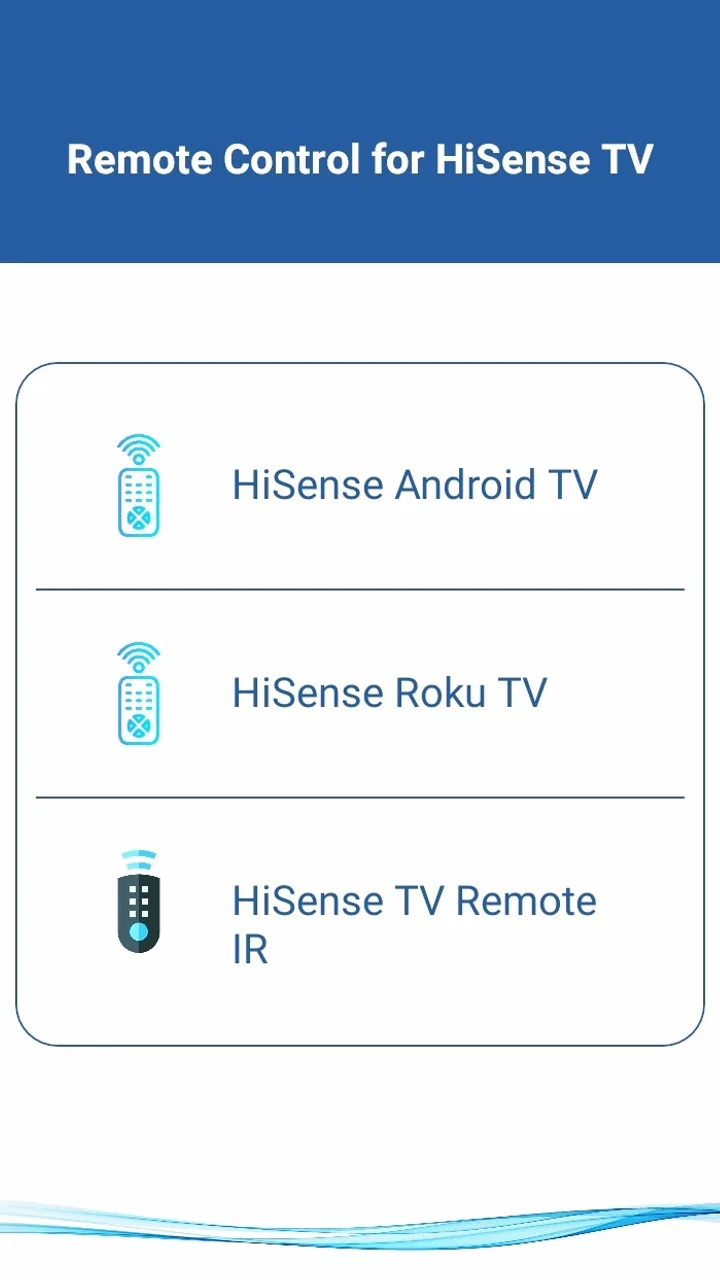
The app’s store summary describes its central role clearly: it converts a phone into a HiSense Smart TV remote control. I would not read that as a promise that every HiSense television behaves identically. Compatibility is the first practical question, and the best approach is to install it when you have access to the television, not minutes before an important viewing session. That gives you time to check whether the phone can find the TV and whether the buttons you actually use respond properly.
Setting expectations before pairing
Before trying it, I would place the phone and TV on the same home network when the app asks for a network-based connection. This is a simple step, but it prevents a common source of confusion: a phone connected through mobile data, a guest network, or a different Wi-Fi band may not see the television even though both devices are in the same room. Network isolation can also matter in some homes, especially where a router separates wireless clients for security.
I would also keep the original remote nearby during the first setup. That is not because the app is necessarily difficult, but because the physical controller gives you a fallback if the TV needs an on-screen confirmation or if the connection has to be enabled through a menu. Once the app is working, you can decide whether it is reliable enough for daily use. This small preparation makes the experience much less frustrating than deleting and reinstalling the app after a failed first attempt.
Another useful habit is to test more than the power button. A remote can appear connected while only some commands work. I would check volume, channel or input selection, directional navigation, confirmation, back, and any controls you use for streaming. If one important function is missing, the app may still be a useful backup, but it should not replace the original remote in your routine.
Trust begins with visible choices
Because a remote app interacts with a television on the home network, I pay attention to the moments when it asks for access or presents a connection choice. I prefer to see a clear explanation of what the app needs at that point, rather than approving everything automatically. The most responsible way to use any utility like this is to grant only the access required for the connection you intend to make and to review the phone’s permission settings afterward.
I do not treat the developer name, rating, or install count as proof of a particular data practice. They tell me that Naba publishes the app and that many people have tried it, but they do not replace reading the app’s permission prompts and the privacy information available in the store or on the device. That distinction matters more for a remote app than it might seem, because a user is connecting a personal phone to a smart television and home network.
In my view, the most trustworthy workflow is a visible one: the app should make it obvious which television is being selected, let you stop a connection attempt, and avoid making the user guess what a prompt means. If Android or iOS shows a system permission request, I would read it instead of tapping through automatically. If a permission seems unrelated to controlling the TV, I would pause and investigate before continuing.
This is also where the free price deserves a little thought. Free is convenient, especially for a tool you may use only when the original remote is missing. It does not by itself explain how the app is supported or what information may be handled. I would therefore judge the app by its visible choices and the permissions shown on my own phone, not by assuming that a free utility is either harmless or suspicious.
Where personal data can become relevant
A remote control does not need to know what you are watching in order to change the volume, but the surrounding connection process can still touch sensitive parts of your digital environment. The app may be used on a home network that also carries phones, computers, cameras, speakers, and other connected devices. That is why I would avoid installing it casually on a work phone or a device with unusually strict security requirements unless the connection and permission behavior fit those rules.
I would also be careful when using someone else’s television. Pairing a phone with a family member’s TV may be harmless in a trusted home, but it is still worth checking which device is selected before sending commands. In a hotel, shared apartment, rental property, or other unfamiliar network, I would be much more cautious. Accidentally controlling another television is awkward; connecting a personal device to an unknown network deserves more consideration.
Account controls are another practical point. A simple remote should ideally be usable without creating unnecessary accounts, but I would not assume that every version or platform behaves in exactly the same way. If the app presents a sign-in screen, I would ask whether that step is genuinely needed for basic remote control. I would avoid reusing an important password for a service that only needs to operate a TV, and I would remove access or sign out where the phone’s settings make that possible.
The same cautious approach applies after changing phones or televisions. If you stop using the app, uninstalling it is sensible, followed by checking the phone’s connected-device and permission settings. If you lend your phone to another person, remember that an already configured remote can send commands to the TV. That is not a dramatic security flaw by itself, but it is a good reason to keep the device locked and to review saved connections when household arrangements change.
How much control does the user really have?
The best part of a phone remote is that the phone is already personal and familiar. You can keep it beside you, use it when the physical remote is unavailable, and stop using the app whenever it no longer helps. That gives the user a simple form of control: install it for a specific need, test it, and remove it if the connection is unreliable or the permissions do not feel appropriate.
At the same time, a touchscreen removes the physical feedback that makes a traditional remote easy to operate in the dark. I sometimes find myself looking down to confirm where a button is, particularly when navigating several menu levels. This is a meaningful limitation for people with visual difficulties, anyone who prefers tactile controls, or households where children need a very simple controller. A physical remote, or an official TV remote app with broader model support, may be a better choice in those cases.
Battery use is another small but real consideration. The app itself may not be demanding, but keeping the phone awake while watching television is less convenient than leaving a remote on the sofa. I would use it as a backup or for occasional control rather than assuming it should permanently replace the original accessory. That approach also avoids the annoyance of discovering that the phone is unavailable when you need to change the input quickly.
Connection recovery is worth testing before depending on it. If the TV is restarted, the router changes, or the phone moves between networks, you may need to select the television again. I would not regard that as a reason to dismiss the app; network-based control naturally has more moving parts than an infrared remote. But it does mean that people who want instant, dependable operation should keep the original controller accessible.
Who will get the most from it?
I think HiSense Smart TV Remote is most useful for HiSense owners who frequently misplace the physical remote, want a convenient backup, or prefer having basic TV controls on a phone. It also makes sense for a household where one person is already holding the phone while watching and only needs occasional commands. The free cost lowers the risk of trying it, provided you are comfortable reviewing the connection prompts and permissions yourself.
It is less suitable for someone who expects a universal remote for many television brands, a replacement for every specialized button, or a controller that works without any network setup. It is also not my first recommendation for a user who needs a guaranteed solution for accessibility, fast blind operation, or a television that is not compatible with the app’s connection method. In those situations, a dedicated physical remote or an official option designed for the exact TV model may be more dependable.
Compared with a generic universal remote app, this one has a clearer purpose because it is aimed at HiSense smart televisions rather than trying to cover an entire living room full of brands. That focus can make the choice easier, but it also narrows the audience. Compared with the original HiSense remote, the phone offers convenience without another accessory, while losing tactile buttons and independence from the phone’s battery and network.
The current version is 7.0, and the app supports devices running Android 4.4 or later. That broad compatibility can help people using older Android phones, although an older operating system may not provide the same permission controls or interface behavior as a newer one. I would pay attention to the system prompts on the specific phone rather than assuming that the experience will be identical across devices.
My practical verdict after weighing convenience and caution
HiSense Smart TV Remote is a focused tool with a sensible everyday use: it gives HiSense smart TV owners another way to control the screen when the original remote is missing or inconvenient. I like that the benefit is immediate and easy to understand, and the free price makes a trial reasonable. The strong average rating and broad install base also indicate that it has found an audience, though neither should replace a compatibility test on your own television.
My recommendation comes with a clear condition: treat it as a convenient backup until it proves itself in your home. Pair it while the original remote is available, test the commands you actually use, review every permission and connection prompt, and avoid relying on it for situations where a physical controller is essential. If the app connects cleanly and respects your comfort level, it can earn a permanent place on your phone.
The most sensible way to use this app is as a tested second remote, not as an automatic replacement for the first one. That balance captures both its strength and its limitation. It can rescue an ordinary evening from a missing controller, but it cannot remove the realities of network compatibility, phone battery life, touchscreen operation, or the need to make informed choices about access. For the right HiSense owner, those compromises are small; for everyone else, a dedicated or official alternative may be the wiser choice.
Overall, I would recommend trying it if you own a compatible HiSense smart TV and want a free, phone-based fallback. I would skip it if you need universal coverage, tactile certainty, or a connection that never depends on the phone and home network. Used with those expectations, HiSense Smart TV Remote is a practical House & Home app from Naba rather than an overcomplicated gadget.
FAQs for HiSense Smart TV Remote
01What devices are compatible with the HiSense Smart TV Remote app?
The HiSense Smart TV Remote app is designed to work seamlessly with most HiSense Smart TVs. It's compatible with both Android and iOS devices. However, ensure your mobile device has the latest operating system updates installed for optimal performance. Compatibility may vary based on the specific model and software version of your TV.
02How do I connect the HiSense Smart TV Remote app to my TV?
To connect the HiSense Smart TV Remote app to your TV, ensure both devices are on the same Wi-Fi network. Open the app, and it should automatically detect your TV. If not, you can manually input the TV’s IP address found in the network settings of your TV. Follow the on-screen instructions to complete the pairing process.
03What features does the HiSense Smart TV Remote app offer?
The HiSense Smart TV Remote app offers a range of features including volume control, channel navigation, input switching, and access to smart TV apps. Additionally, it allows users to use their mobile device as a trackpad for easier navigation and supports voice commands for enhanced convenience. The app also provides quick access to favorite channels and apps.
04Is there a cost associated with using the HiSense Smart TV Remote app?
The HiSense Smart TV Remote app is free to download and use. However, some premium features or additional functionalities may require in-app purchases. Always check the app's store page for any information regarding costs or subscription options before downloading.
05What should I do if the HiSense Smart TV Remote app is not working properly?
If the HiSense Smart TV Remote app is not functioning correctly, try restarting both your mobile device and TV. Ensure both devices are connected to the same Wi-Fi network. Check for any available updates for the app and your device’s operating system. If problems persist, contact HiSense customer support for further assistance.
Pros
- Easy to set up with any HiSense TV model
- Smooth and responsive remote controls
- User-friendly interface with intuitive design
- Voice control feature enhances usability
- Supports multiple devices for convenience
Cons
- Limited compatibility with non-HiSense TVs
- Some features require a stable internet connection
- Occasional lag during voice command processing
- Ads can be intrusive in the free version
- No option for custom button configuration

HiSense Smart TV Remote
Gallery